Animating Buttons in Fireworks By:
Bookie 

The in depth tutorial will explain how to create basic buttons and animation in fireworks. It includes all the details required to create good looking buttons in my eyes. Hope it helps everyone.
Step 1 - Making a New DocumentFirst we'll start out by making the basic layout of a button, open up Fireworks, and select
"New" from the dropdown list under File. A screen will come up which prompts you to enter the perimiters for your button, use the options in the image below.
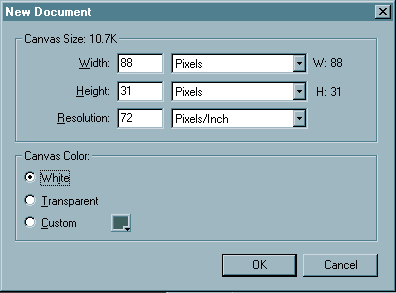 Width:
 88 pixels
Height: 31 pixels
Resolution: 72
Canvas Color: White (or the color you want your image background to be.
Step 2 - Creating the RectangleYou should now have a small window open with a white rectangle in it. Start out by creating a black border for the image, do this by selecting the rectangle tool, and dragging it so you get the blue looking rectangle around your entire image.

After you have the rectangle made give it a one pixel stroke by selecting the colors from the colors docker on the main toolbar. If you dont see the main toolbar you can activate it by going to Window > Tools.
 NOTE: If you border is bigger than one pixel you can easily modify it by opening the Stroke docker (Window > Stroke) and setting it to one pixel with a 1-Pixel hard stroke. Also if your rectangle doesn't cover the entire area, select the main arrow tool, select one corner at a time and move it pixel by pixel until it covers the entire area.